
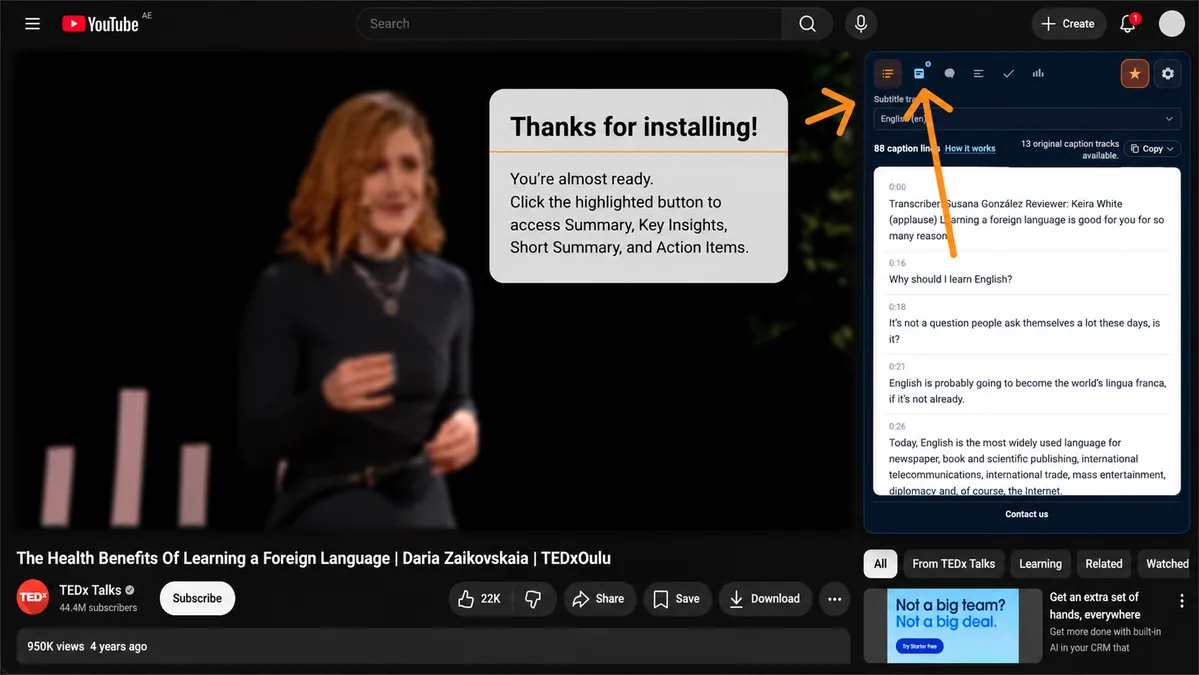
Step 1
Pin the extension (optional)
Click the puzzle icon in Chrome’s toolbar, find Youtube To Transcript, and pin it for quick access.
The extension runs on YouTube watch pages. Open any video, use the panel on the right, and turn captions into summaries, notes, and more.
Works on desktop Chrome. The panel appears in YouTube’s right sidebar.
Click the puzzle icon in Chrome’s toolbar, find Youtube To Transcript, and pin it for quick access.
Go to any youtube.com/watch page. The extension loads automatically. If ads are playing,
the panel waits until the video continues.
Open the Transcript tab in the right sidebar. Pick a caption language if multiple tracks are available.
Click an AI tool (Summary, Key insights, etc.) and sign in with the same Google account you use for Premium billing.
Press Generate, then Copy or Regenerate. Upgrade to Premium for unlimited generations.
Each preset uses the loaded transcript to produce a different format.
A clear overview of the video’s main ideas, organized in short sections.
Pull out the most important takeaways and lessons from the captions.
A compact executive summary when you only need the essentials.
Turn spoken content into a checklist of things to do or follow up on.
Deeper analysis cards highlighting notable points from the transcript.
On desktop, it sits in YouTube’s right column above recommendations. On narrower layouts it may appear as a floating panel. Refresh the watch page if you just installed the extension.
Google sign-in links your usage to your account, enables AI generation, and keeps Premium subscriptions in sync between the extension and this website.
The extension needs subtitle tracks on the video. Auto-generated captions still work — pick the available language in the transcript dropdown.
Use Buy Premium in the extension settings menu or visit the Premium page. Checkout is handled securely by Stripe.
Install the extension, open a YouTube video, and generate your first AI summary in under a minute.